
Introduction
A simple path from your first character to posts that can take off.
This studio helps you create and grow an AI creator from one place. Lock a face, make a week of posts, turn winners into carousels, and publish.
Start with consistency. If the face changes every session, people will not remember the creator. Use the Start here guides in order and build a recognizable feed.
Create your AI influencer first. Merge a few strong closeups for realism, save a photo you already love, or build a new face. The goal is one character you can use again and again.
Next, shoot a week of content in one sitting. Keep the winners and post them over several days. More good posts means more chances to go viral.
Turn your best still into a carousel when you want more watch time and swipes. Carousel Shots gives you matching angles of the same person.
Publish to Fanvue on Presence. Then use MCP, saved briefs, schedules, and templates to keep content moving.
The Platform guides explain credits, models, History, Assets, and MCP. When you are ready, open the first guide and lock your face.
Start here (in order)
- 1.
Create your AI influencer
Lock one reusable face with Direct Save, Merge, or Build. A consistent face makes the whole feed stronger.
Open guideCreate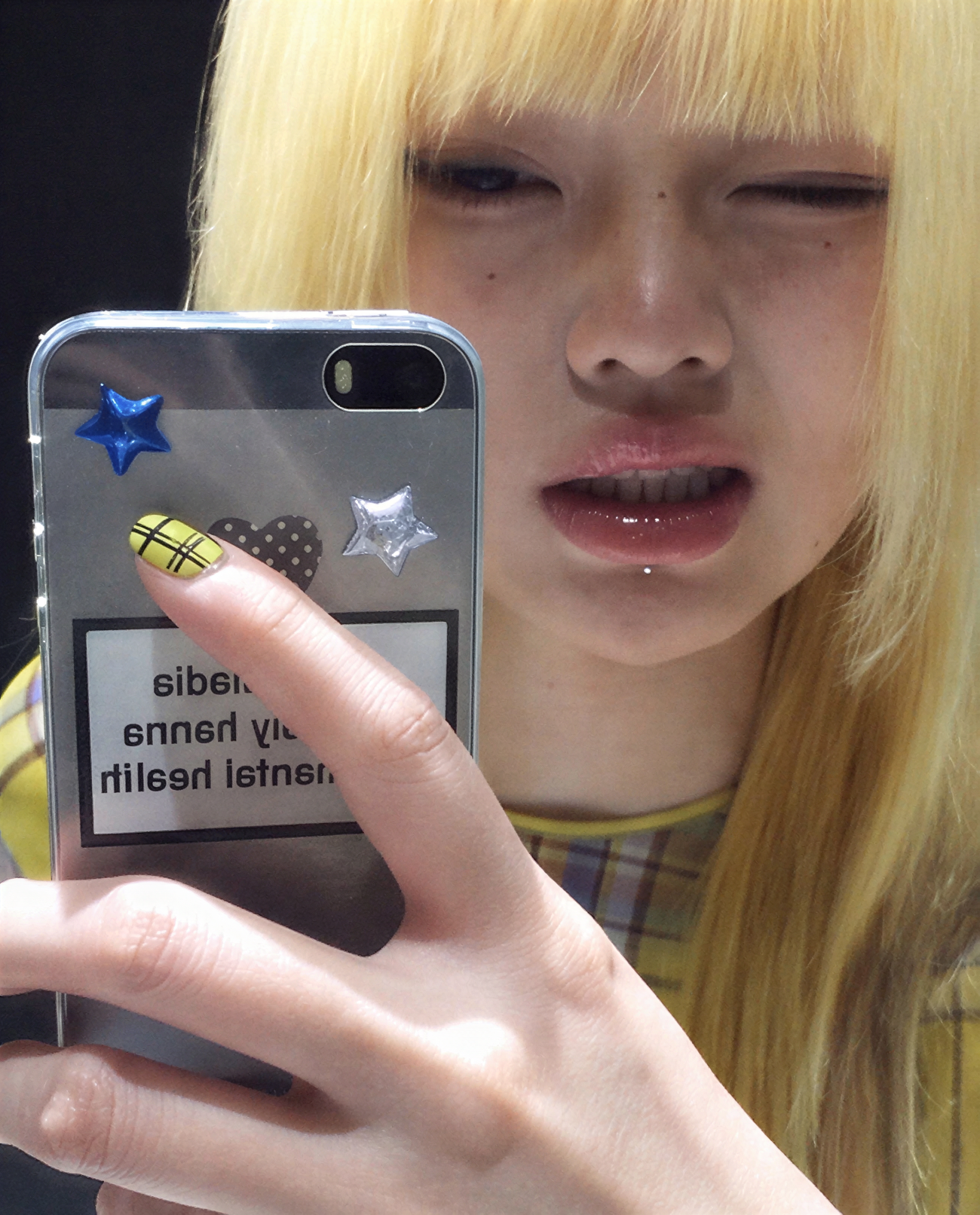 @mayacoffee-shop still, soft window light, vertical 4:5
 - 2.
Shoot a week of content
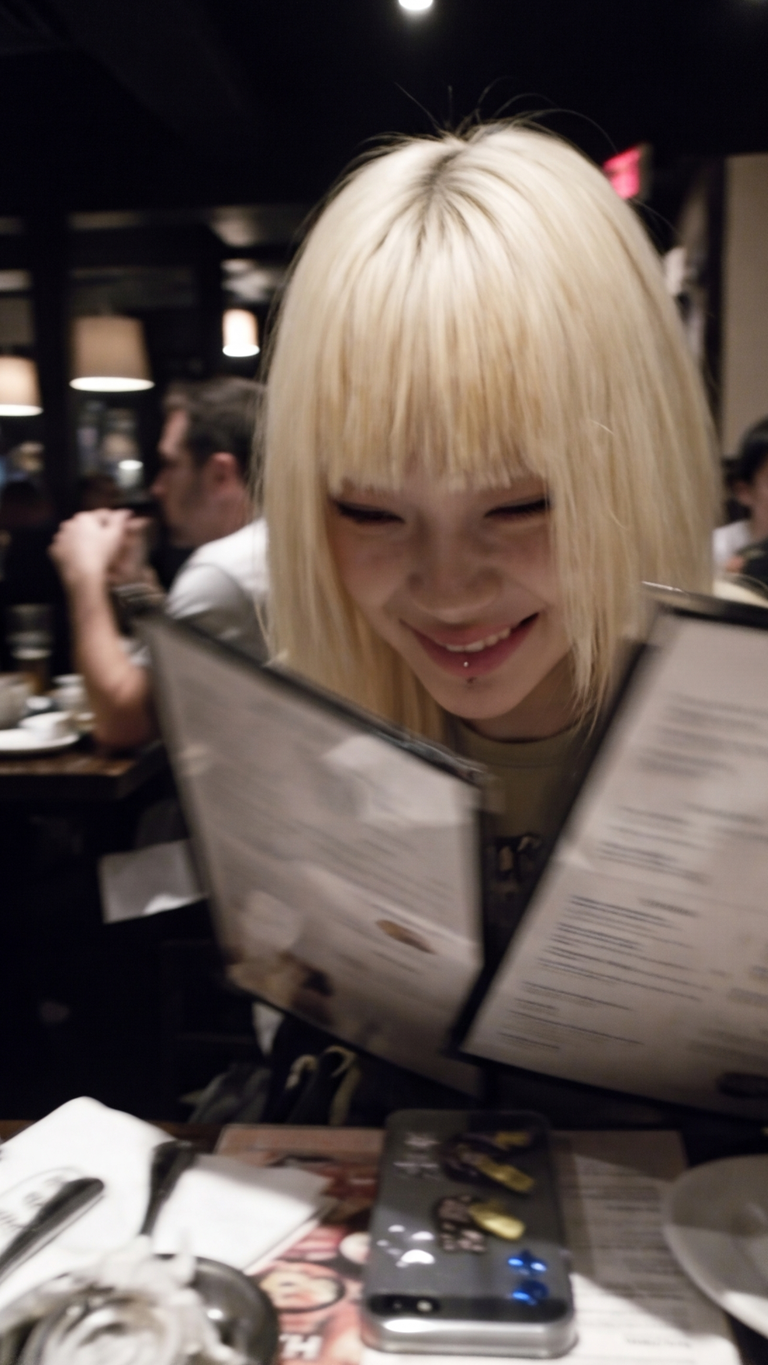
Batch 7–14 stills of that same person across scenes, cull to keepers, save them in Library.
Open guide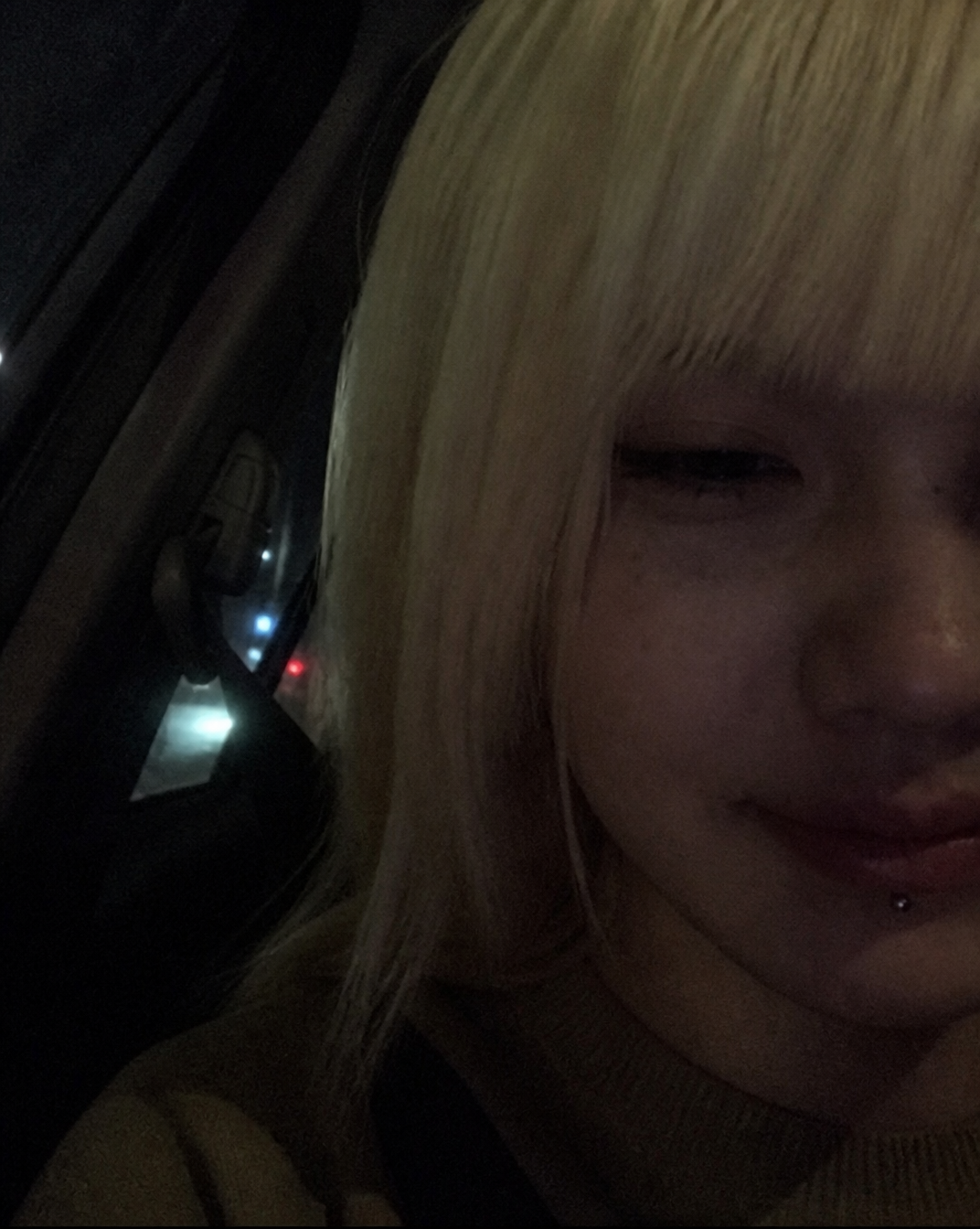

 @maya
@maya - 3.
Make a carousel / multi-angle shoot
Turn one keeper into a matching multi-angle set for a single post.
Open guide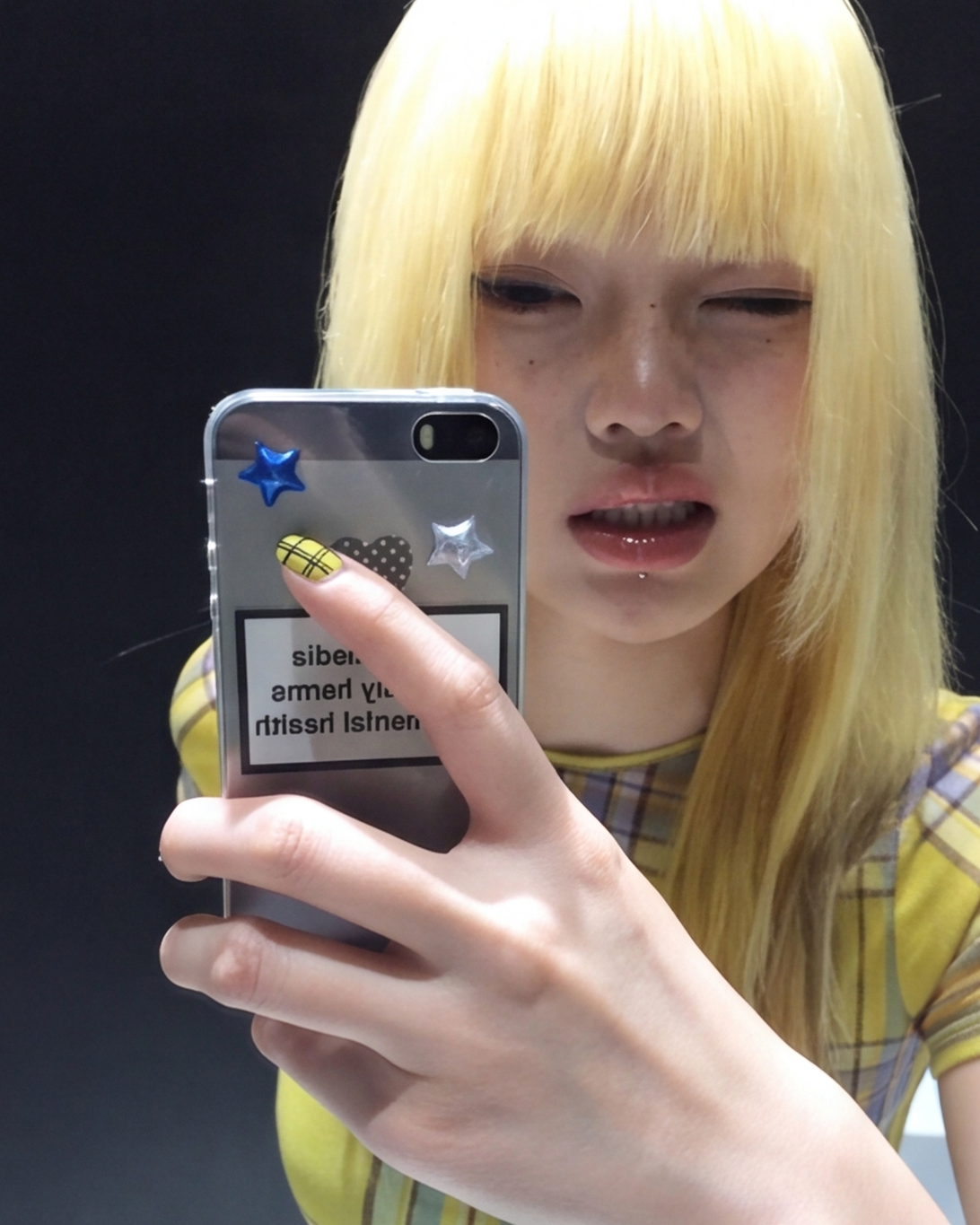
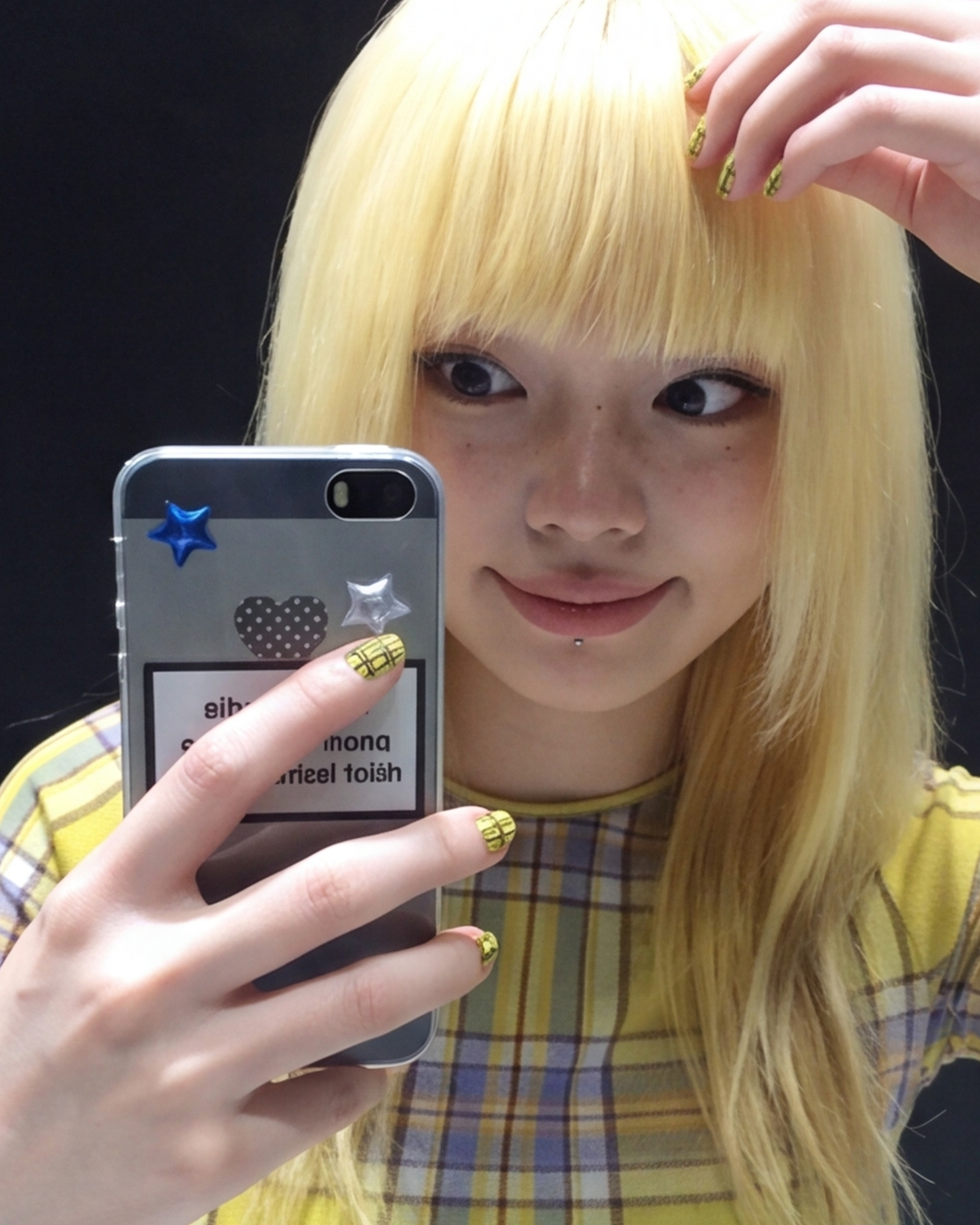
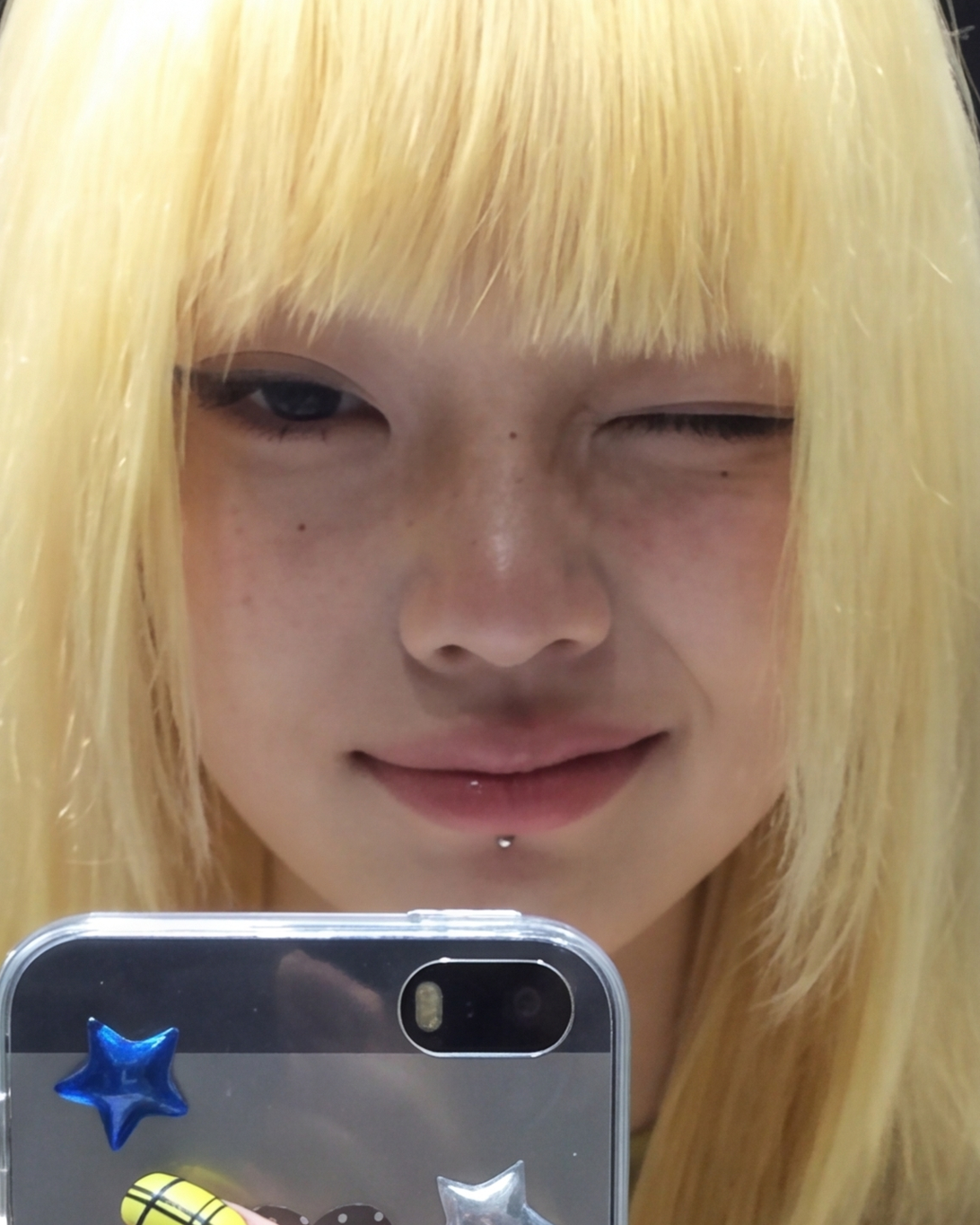
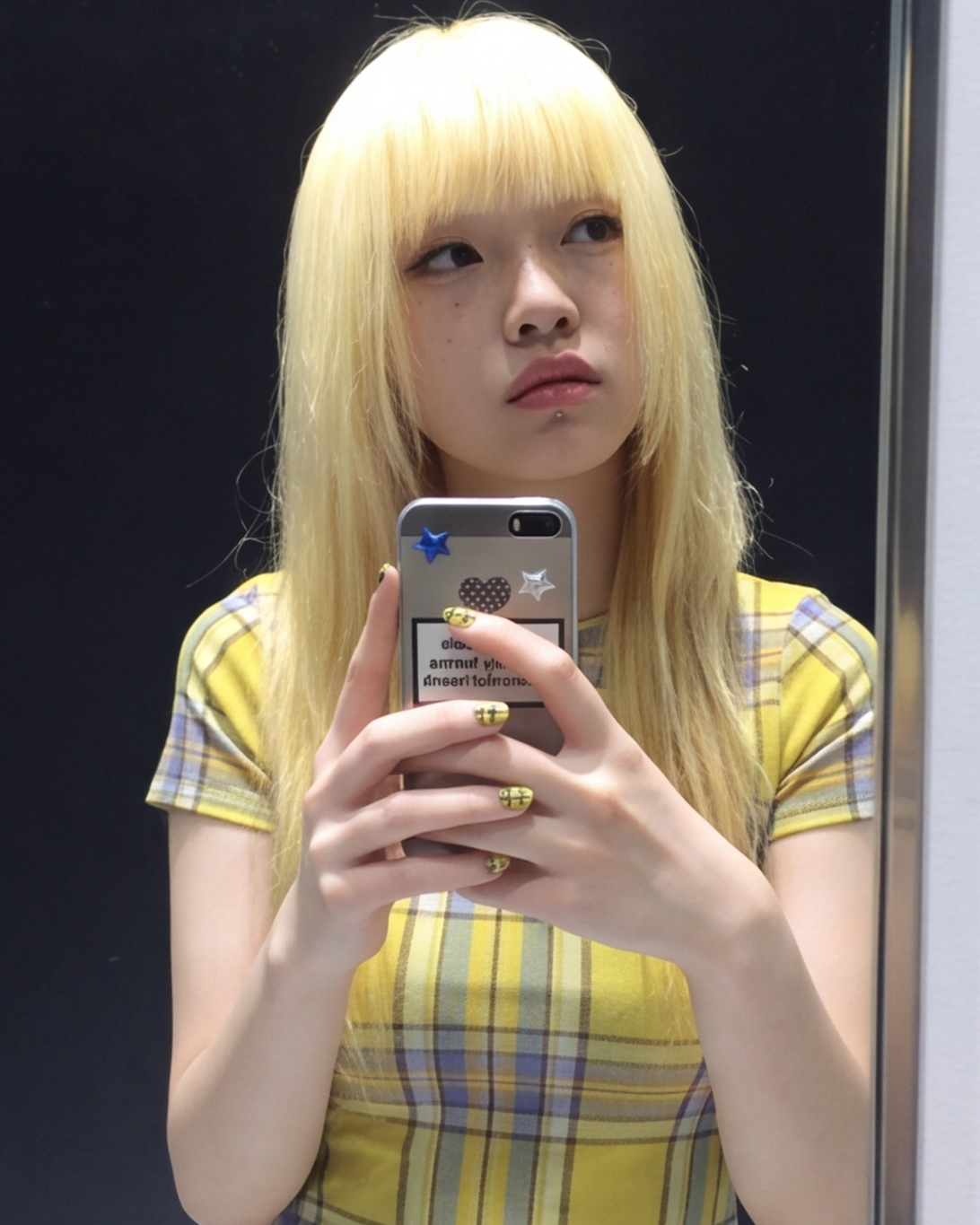 Generate
 - 4.
Publish to Fanvue
Connect Fanvue in Content, pick vault media or a Studio keeper, set PPV, and publish or schedule.
Open guide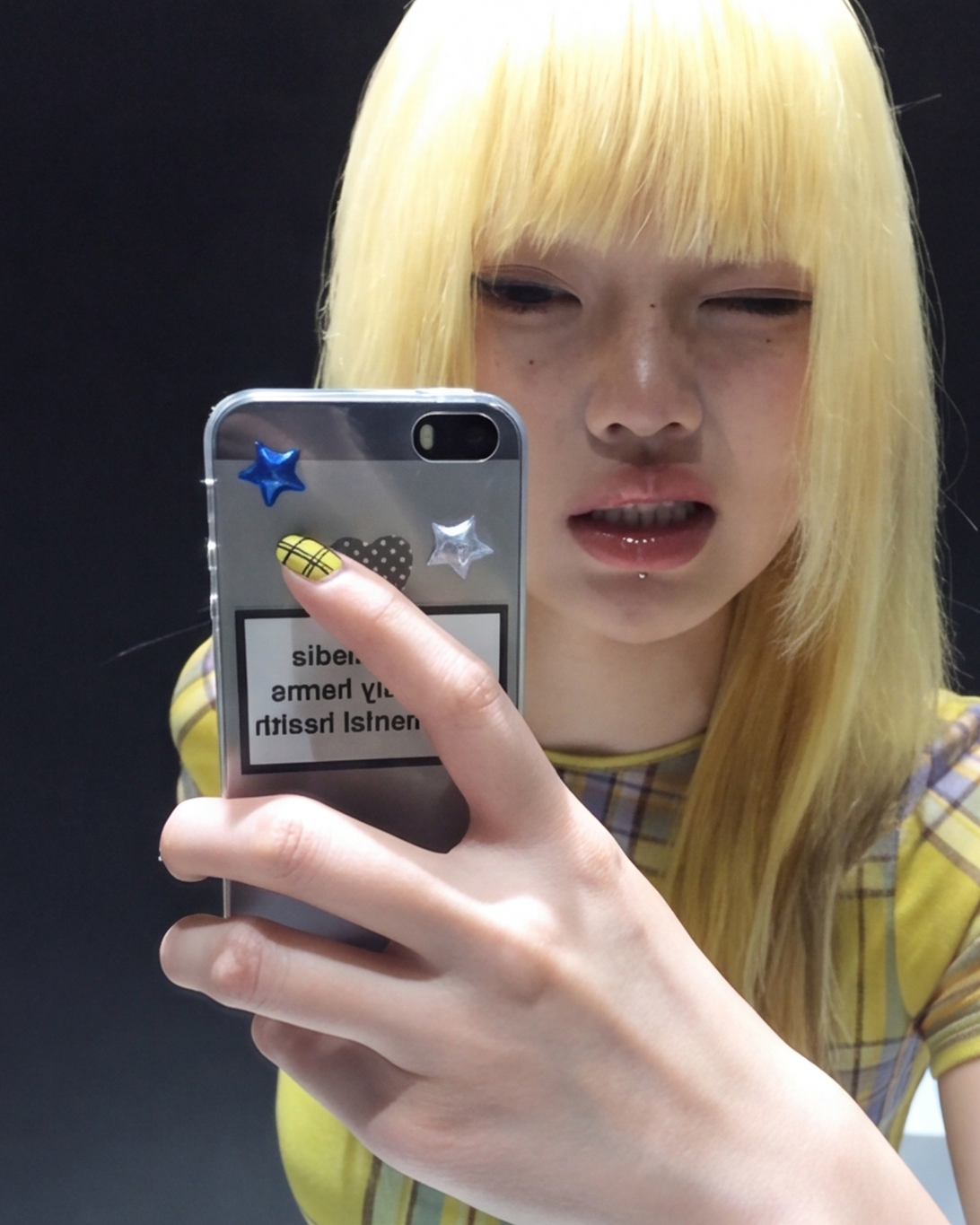
Vault still
Ready to post
Paid post (PPV)9.99Publish nowPosted to Fanvue - 5.
More scale levers
Use MCP with reusable briefs, scheduled workflows, and templates to make production repeatable.
Open guide